 4.8/5
4.8/5







Tracker Card Setup (Android Google Find My)
Welcome and thank you for your Essentialbag order! Tracker Card!
To guarantee you a seamless experience and make setting up your new tracker as easy as possible, please follow these optimized steps.
You have one
iOS device?
Click the button below to access the iOS setup for Apple devices.
Co-Founder Marvin Explains in 39 seconds.

1. Tracker Karte aufladen
Deine Tracker Karte ist nicht vollständig aufgeladen — auch ohne Nutzung entlädt sich der Akku über die Zeit.
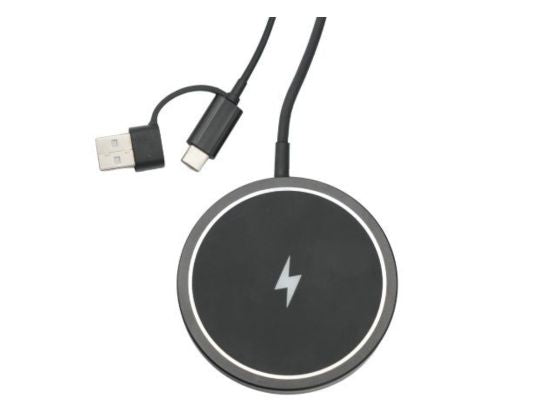
Lade sie vor dem ersten Einsatz induktiv auf: Lege die Karte so auf ein kabelloses Ladegerät, dass das Symbol auf der Rückseite mittig auf der Ladefläche liegt.
Während des Ladens leuchtet die LED rot, bei voller Ladung wechselt sie auf grün. Nach etwa 45 Minuten ist die Karte komplett geladen und für rund 10 Monate einsatzbereit.
Tracker Card Set up with Google's Find Hub
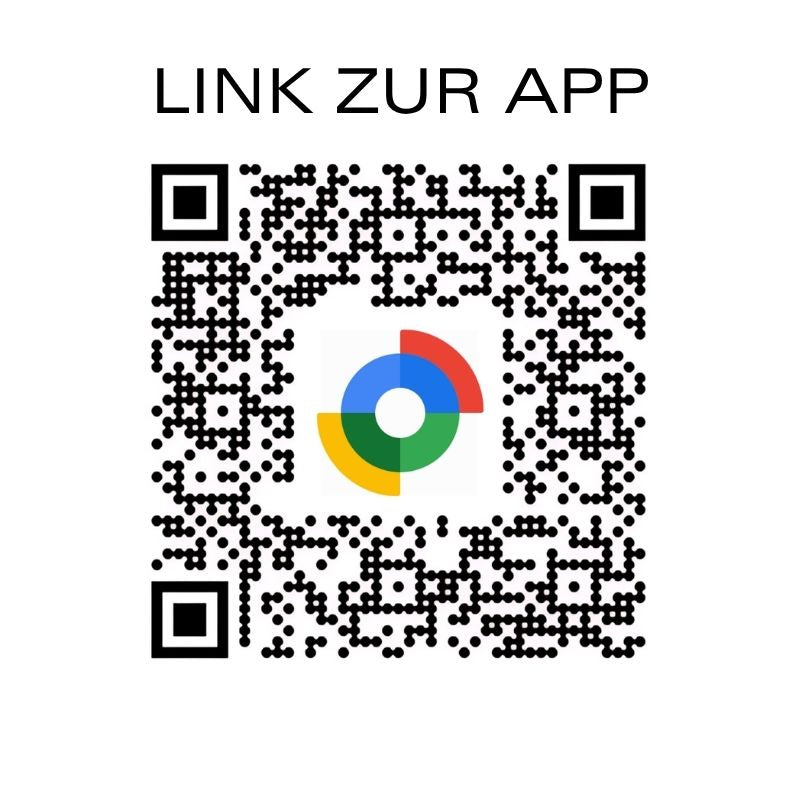
Before we start:
Install Google's Find Hub app
Install and Open the "Google's Find Hub" app.
2. Gerät einschalten
Drücke die Taste 5 Sekunden lang, um das Gerät einzuschalten. Du hörst dann 3 Töne als Bestätigung, dass das Gerät aktiv ist.
Um zu überprüfen, ob das Gerät an ist, kannst du die Gerätetaste schnell doppelklicken. Wenn das Gerät an ist, hörst du 3 Töne.
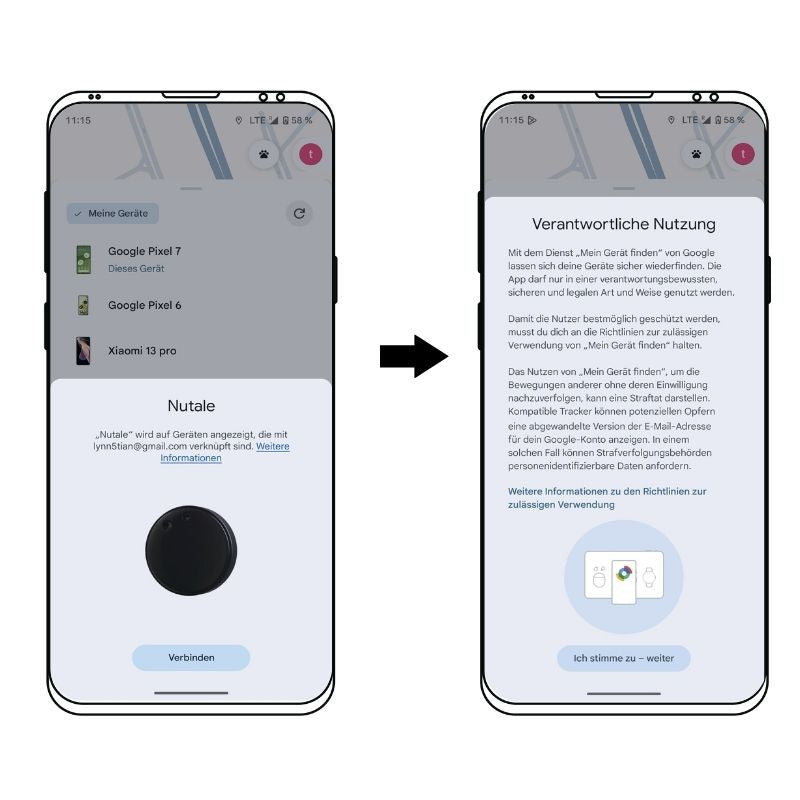
3. App pairing
1. Tracker Card turn on and connect:
Hold the button on the Tracker Card for about Press and hold for 5 seconds, until you notice a short tone or an LED indicator – this means that the Card is switched on and ready to connect.
Hold your phone close to the Tracker Card
Then tap on in the app "Connect", to start pairing with your smartphone.
2. Confirm terms of use:
Read the displayed Terms of Use Read carefully. To continue, select the option “I agree – continue” Click "OK". By doing so, you agree to the terms and conditions and proceed to the next step of the setup process.
Karte wird nicht erkannt?Werkseinstellungen Reset
Ein Werksreset hilft bei Problemen beim Koppeln oder wenn die Karte vom Handy nicht erkannt wird — auch bei fabrikneuen Karten.
- Entferne das Gerät in der Google "Find Hub"-App
- Schalte das Gerät ein und doppelklicke die Taste, um es zu aktivieren.
- Klicke die Taste 4 Mal und halte sie beim 5. Drücken etwa 8 Sekunden lang gedrückt: Das Gerät gibt 5 Signaltöne aus. Halte sie weiter gedrückt ohne loszulassen, bis 3 weitere Töne folgen — der Reset ist abgeschlossen.
Anschließend kannst du die Karte wie oben beschrieben neu koppeln.
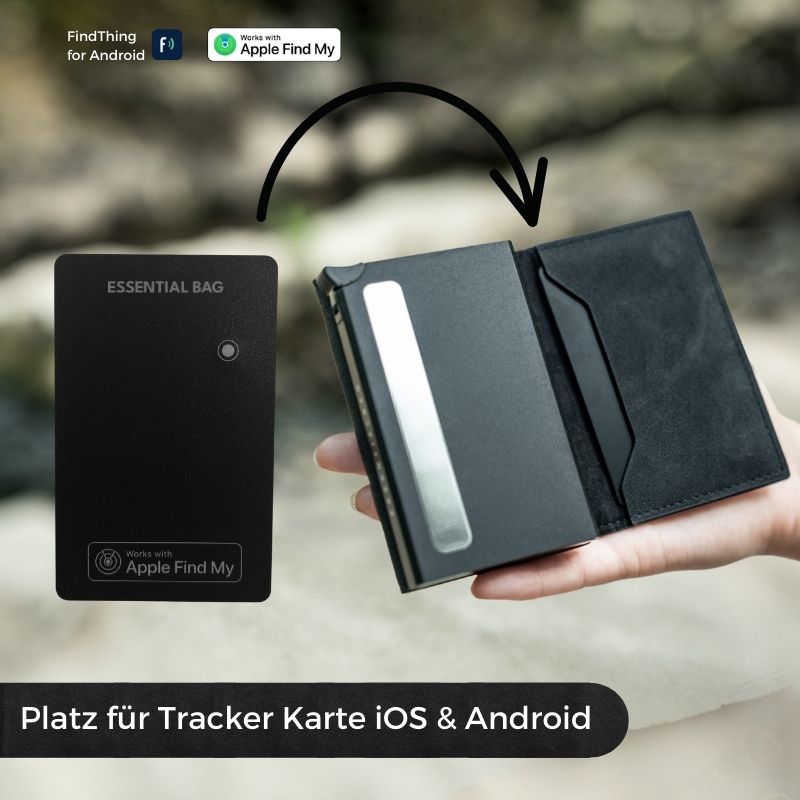
4. Inserting the Tracker Card
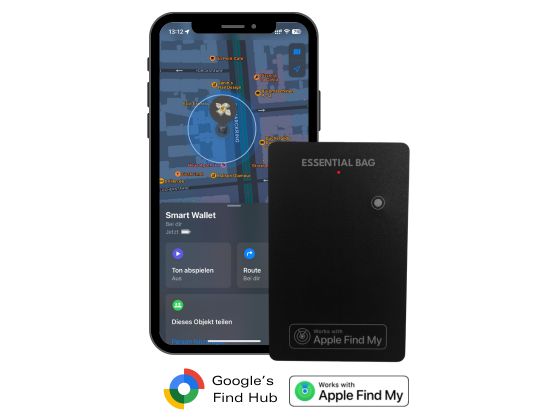
Position the Tracker Card Now in your smart wallet. Ideally, place it in the right inner compartment of your smart wallet, exactly as shown in the image. This way it's perfectly integrated and your Smart Wallet is from now on always findable.
Tracker Card find
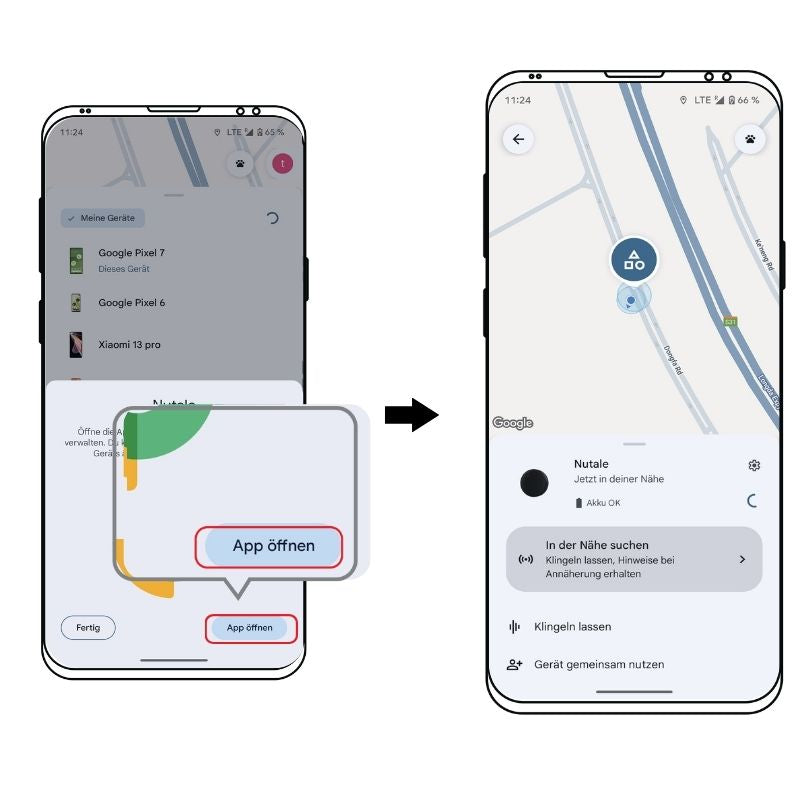
Find your device with the “Google Find Hub” app
3. Accept the terms of use and Complete setup:
Vote Terms of Use to, by clicking on “I agree – continue” typed.
Then tap on "Open app", to establish the Tracker Card to complete completely.
The Card It is now successfully connected to your smartphone and can be located at any time via the app.
Tracker Card Remove
Gehe in die "Google Find Hub" App rein und entferne dort das Gerät.
Danach kannst du die Tracker Karte auf die Werkseinstellungen zurücksetzen und sie erneut koppeln.

To restart
Tracker Card turn off
Click the button 5 times in quick succession. The device will play 4 tones and then switch off.
General questions
Advanced FAQ
For questions about Tracker CardFor information that goes beyond the furnishings, please visit our product page.

Need support?
CONTACT OUR FOUNDER
For direct questions about the product, our managing director will be happy to assist you. Don't hesitate to contact him directly:
Send us an email to: support@essentialbag.de
We are happy to help!