 4.8/5
4.8/5
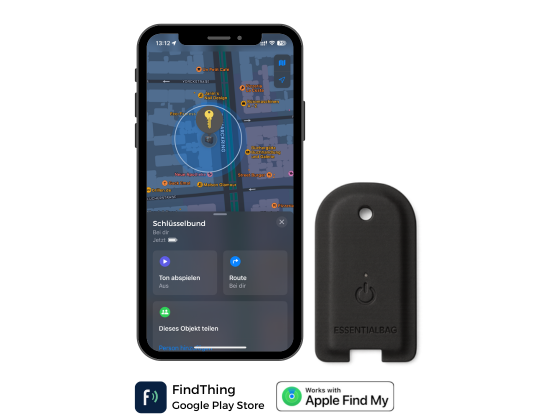


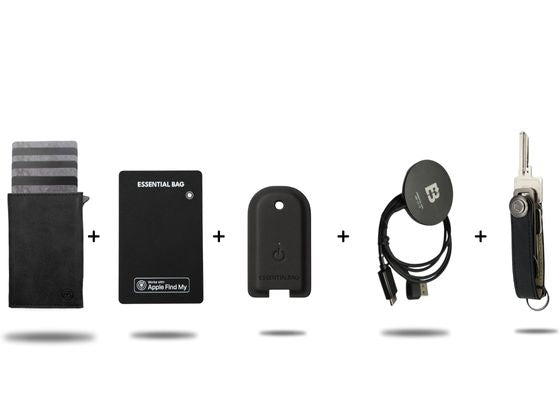





Tracker Card Setup (Android FindThing)
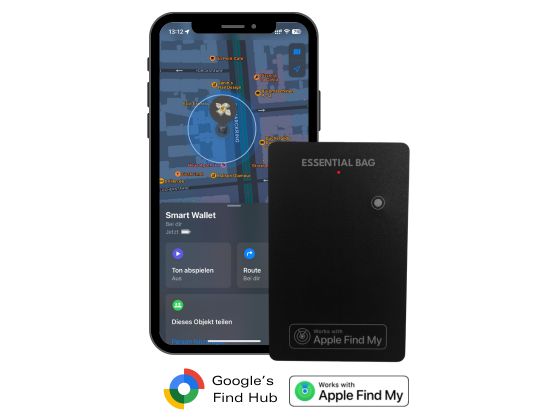
Welcome and thank you for your Essentialbag order! Tracker Card!
To guarantee you a seamless experience and make setting up your new tracker as easy as possible, please follow these optimized steps.
You have one
iOS device?
Click the button below to access the iOS setup for Apple devices.
Co-Founder Marvin Explains in 39 seconds.
Tracker Card furnish

Before we start:
Install Findthing app
To set it up, you need the free app "Findthing - Smart Finder" from the Google Playstore.

1. Tracker Card charge
Your new Tracker Card The battery is not yet fully charged to optimally protect it and ensure its full performance. Even without use, the battery will discharge over time. Use a wireless charger and charge the battery. Card, until the indicator light changes from red to green.

2. Switch on the device
Press and hold the button for 5 seconds to turn on the device. You will then hear a beep to confirm that the device is active.
To check if the device is on, you can double-click the device button. If the device is on, you will hear a beep.

3. App pairing
- Download the app: Load the "Findthing Smart Finder" Download the app from the Google Play Store.
- Activate Bluetooth: Make sure Bluetooth is enabled on your phone.
- Open the app: Open the "Findthing Smart Finder"Open the app and follow the instructions."
- Add device: Click on "Add device", Scroll down the device list to "Other" and select this option.
- Tracker Card couple: Keep the Tracker Card near your smartphone. As soon as the Card Once found, select them to connect.
- Name the device: Enter a name for your device, select a suitable category (z.B. "Wallet") and add a picture.
- Complete the process: Tap in the top right corner "Completed", to complete the process.
Step-by-step video instructions
App pairing
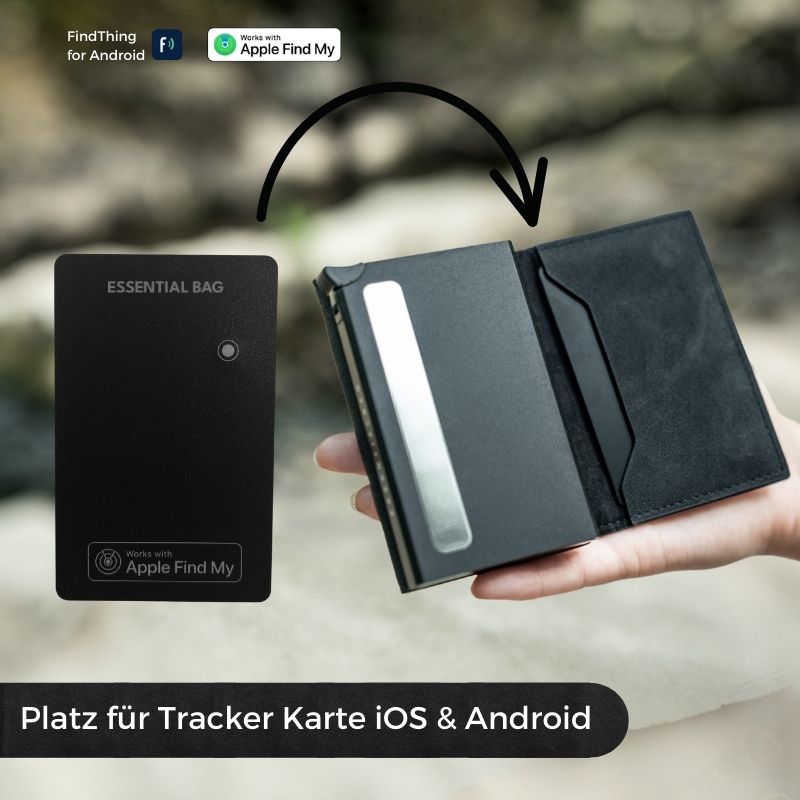
4. Inserting the Tracker Card
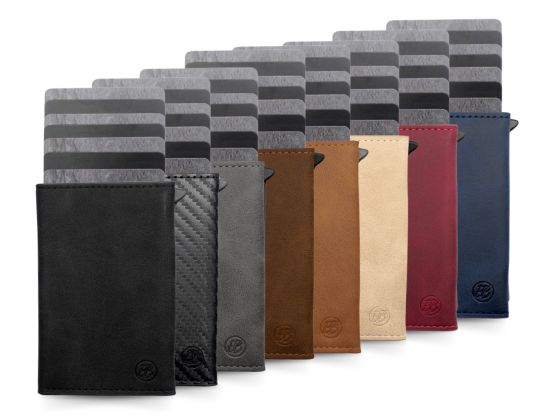
Position the Tracker Card Now in your smart wallet. Ideally, place it in the right inner compartment of your smart wallet, exactly as shown in the image. This way it's perfectly integrated and your Smart Wallet is from now on always findable.
Tracker Card find
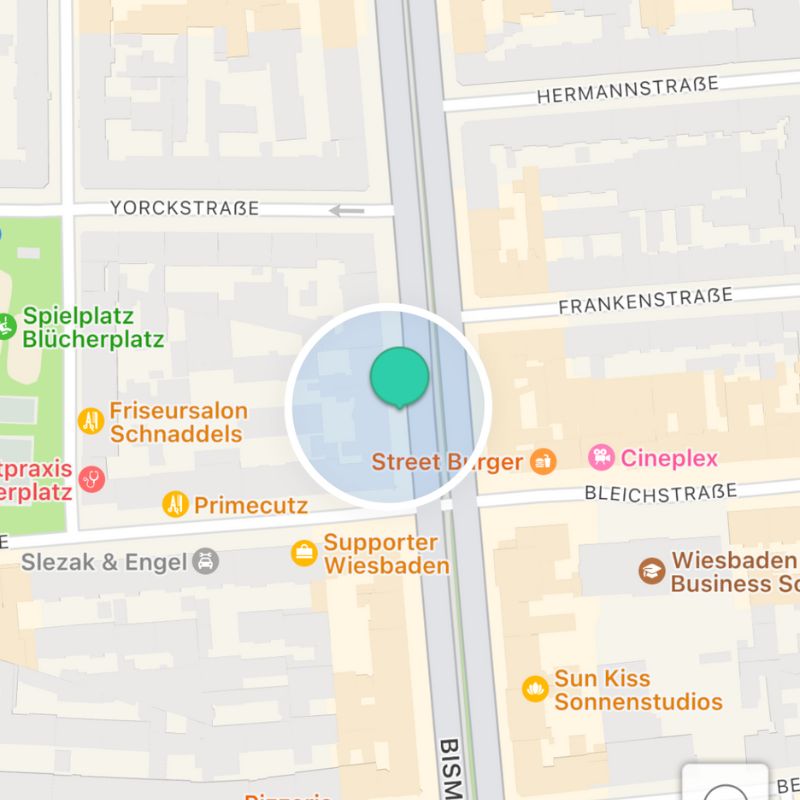
Find your device with the “Findthing Smart Finder” app
- Open the app: Open the "Findthing Smart Finder"-App on your smartphone.
- Select device: Choose your GPS Tracker Card from the list of connected devices.
- View location history: Click the button "Location history", to determine the current location of Card on a Card to be displayed.
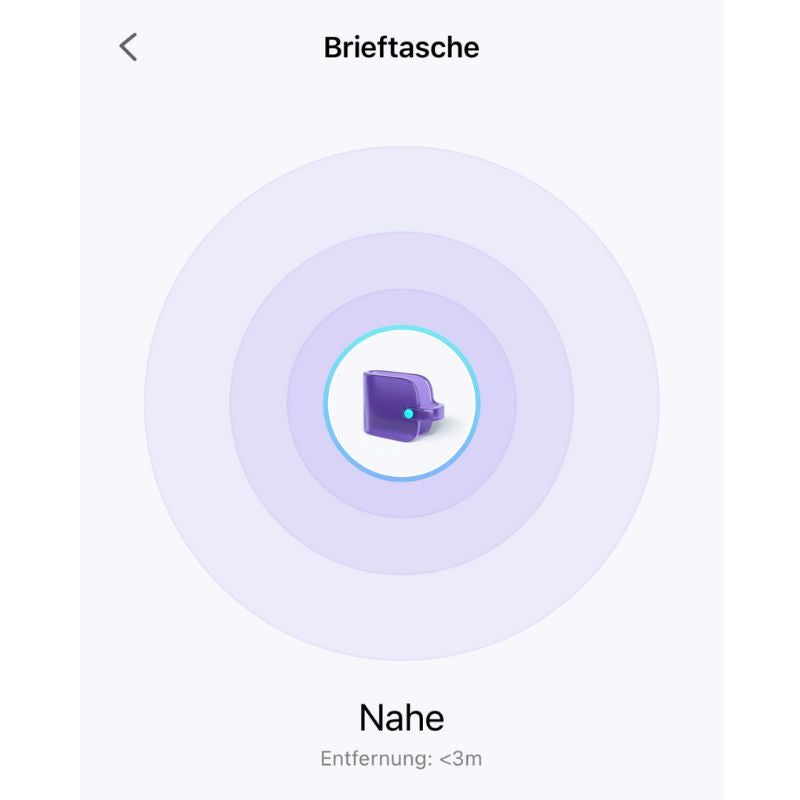
Find device with beep
- Open the app: Open the "Findthing Smart Finder"-App on your Android device.
- Select device: Choose your GPS Tracker Card from the list of devices.
- Activate the beep tone: Click on "Call", to your GPS Tracker Card to be located with a signal tone.
Tracker Card Remove

Tracker Card remove from the "Findthing Smart Finder" app
- Register: If you are not already logged into the "Findthing Smart Finder" app, log in now.
- Select device: Choose your GPS Tracker Card from the list of devices.
- Access device information: Click on the "About device" button.
- Disconnect: Scroll down and select "Disconnect".
- Confirm: Click the "Confirm" button to permanently disconnect.
After the device is removed, it will emit a beep. The device does not switch off but remains in pairing mode. If no re-pairing occurs within 10 minutes, the device will exit pairing mode. If you wish to re-pair the device at this point, press the device button once. The device will beep, indicating that it is back in pairing mode and can be paired again.

Tracker Card reset to factory settings
If you encounter difficulties re-pairing your device or wish to completely reset it, resetting to factory settings may be helpful. This process removes all previous settings and restores the device to its original state.
- Remove the device from the "Findthing Smart Finder"-App
- Turn the device on and double-click the device button to ensure it is active.
- Hold the device button down for eight seconds: The device then emits a beep.
- Release the key, to complete the factory reset.
After this process, the device is like new again and ready to be re-paired according to the instructions above.
Tracker Card reset to factory settings
If you encounter difficulties re-pairing your device or wish to completely reset it, resetting to factory settings may be helpful. This process removes all previous settings and restores the device to its original state.
- Remove the device from the "Findthing Smart Finder"-App
- Turn on the device and double-click the device button to ensure it is active.
- Hold the device button down for eight seconds: The device then emits a beep.
- Release the key, to complete the factory reset.
After this process, the device is like new again and ready to be re-paired according to the instructions above.

To restart
Tracker Card turn off
Click the button 5 times in quick succession. The device will play 4 tones and then switch off.
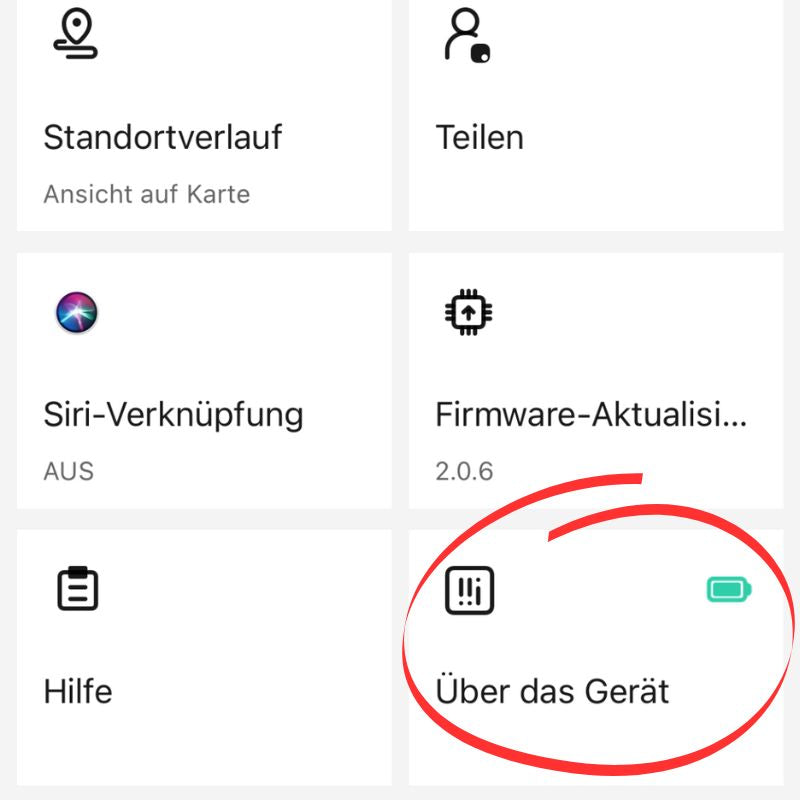
Battery status
The battery status of your Tracker Card You can view this in the "Findthing - Smart Finder" app. In the app, go to your device and select "About device". There you will find all the information about the current battery level.
Here you can also remove the connection to your mobile phone to... Card to reconnect.

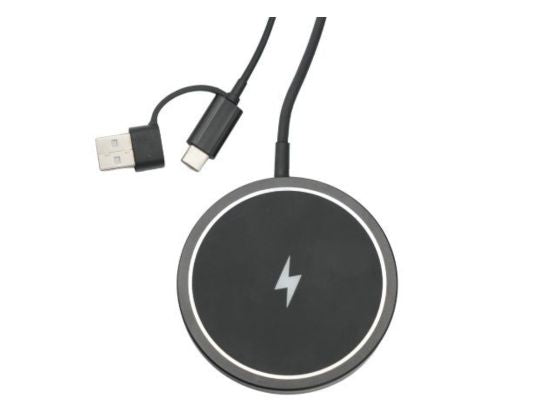
INDUCTIVE CHARGING OF THE TRACKERCard
You can use your GPS Tracker Card Charge inductively. Align the Card The symbol on the back should align with the center of the charger. The red LED lights up during charging, and when the Card The green LED lights up when the device is fully charged. A full charge usually takes about 45 minutes. Tracker Card It will then be operational again for about 10 months.
Setup FAQ
Furnishings
Please check the following points:
- Your Tracker Card is 100% charged
- You have completed your tasks using the instructions above. Tracker Card Attempts to turn on, off, reset to factory settings, and check the status
- You pressed the button quickly enough in succession for the functions that require multiple presses.
If yours are also now Tracker Card If you haven't responded, please contact us so we can send you a free replacement!
General questions
Extended FAQ
For questions about Tracker CardFor information that goes beyond the furnishings, please visit our product page.

Need support?
CONTACT OUR FOUNDER
For direct questions about the product, our managing director will be happy to assist you. Don't hesitate to contact him directly:
Send us an email to: support@essentialbag.de
We are happy to help!